
What makes a password secure in practice?
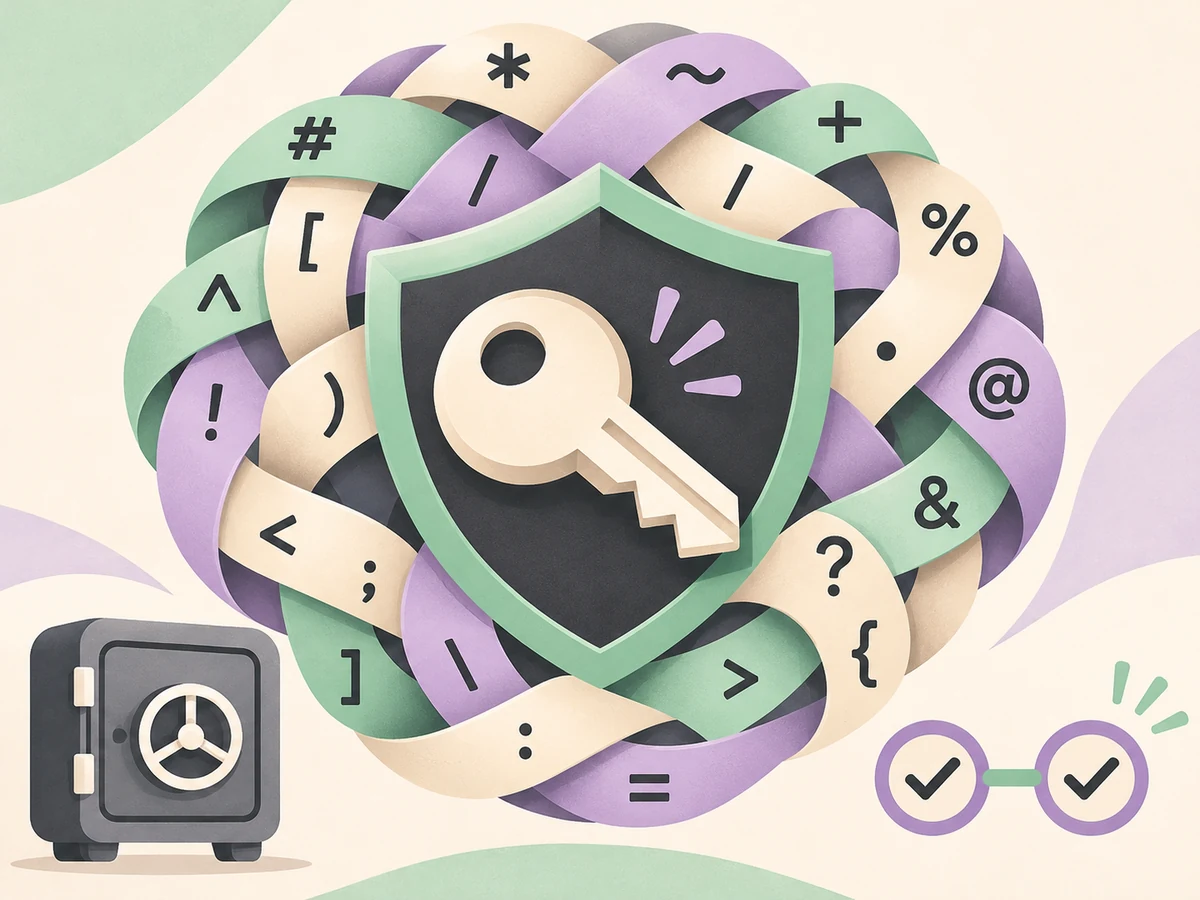
Secure passwords are difficult to guess, different from credentials used on other services, and stored so that other people cannot obtain them. These requirements work together. Length increases the number of possible combinations; randomness avoids predictable patterns; uniqueness stops one breach from spreading; protected storage reduces exposure on your device.
No password by itself prevents phishing, malware, a service failure, or session theft. Treat it as one access layer, not a promise that an account can never be compromised. Also use software updates, sign-in alerts, and the recovery features provided by the service.
How to choose strong passwords: length and randomness
To create strong passwords, choose the longest random value the service accepts without problems. For many accounts, 16 characters or more is a practical starting point when the form allows it. A master password or a key protecting important data deserves special care: a passphrase made from several independently selected words may be easier to type, while random character passwords work well when a manager can fill them for you.
Character count does not tell the whole story. Password security depends on how each character was selected. A random 16-character string is different from a familiar 16-letter phrase. The theoretical entropy grows with the set of possible choices, but it describes an assumed selection process; it does not measure phishing, breaches, reuse, or flaws in a service.
- Everyday account: use a long random password and let your manager fill it in.
- Master password: choose independent words at random, not a phrase you invented.
- PIN: use the length allowed by the device and avoid obvious sequences.
How to create strong passwords in four steps
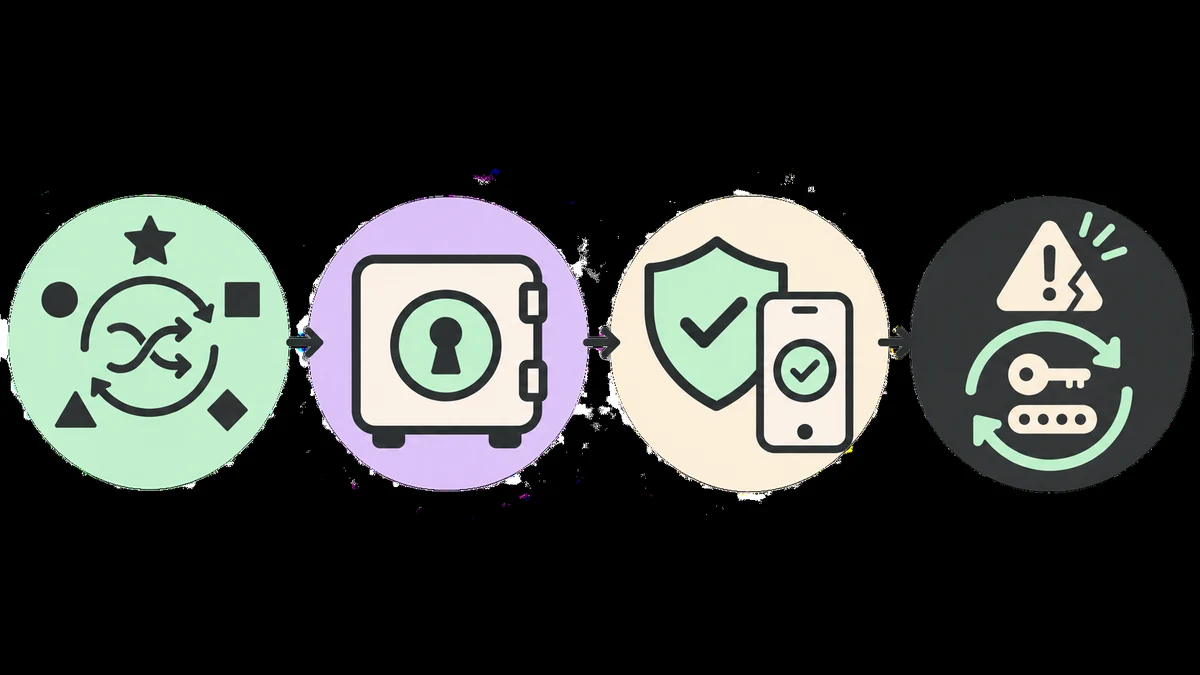
- Check the account. Open an address you typed yourself or a trusted bookmark. Confirm the domain before entering a password, especially after following a link from a message.
- Generate a new password. Use a generator with a suitable random source, such as the browser Web Crypto API. Match the service's length limit and do not edit the result to make it “easier”.
- Save it in your vault. Copy the value straight into your password manager and associate it with the correct domain. Avoid leaving passwords in the clipboard, unprotected notes, shared spreadsheets, or screenshots.
- Add another protection layer. Set up two-step authentication, a passkey, or a security key if the service offers one. Keep recovery codes in a protected place separate from your primary device.
If a form rejects the value, first check the service's documented requirements. Generate a compatible password instead of removing characters predictably or reusing an old credential. Then test autofill and confirm that the manager saved the correct URL.
Store strong passwords and avoid reuse
Memorizing a different password for every account is impractical. A password manager creates and stores strong, individual credentials in a protected vault. You only need to remember the master password and protect access to the vault; the other passwords can be long and random.
Before choosing a manager, check whether it offers automatic locking, two-step authentication, protected synchronization, data export, and a recovery process you understand. Read its official documentation to learn how the vault is protected and what happens if you lose a device. Keep the app updated and secure the account that unlocks the vault.
Save each credential with the correct web address, and avoid filling forms on a page whose domain you do not recognize. A manager may help you notice that a site is different, but it does not replace your attention. Do not reuse the master password for email; enable another factor for the vault and keep recovery codes somewhere safe.
Enable two-step authentication and protect recovery
Two-step authentication asks for another proof in addition to a password. It may use a passkey, physical security key, authenticator app, approval prompt, or code sent by message. The strongest available option depends on the service and device. A passkey or security key usually resists fake sign-in pages better than a code you type, but any second factor can reduce the risk from a discovered password.
Enable the feature in the account's official settings, not through an unexpected link. Store recovery codes in a protected place and check how the service replaces a lost phone. Never send a one-time code to someone who calls or messages claiming to be support. Legitimate support does not need you to reveal a code to cancel fraud.
How to protect accounts after a password breach
Use the service's official notification as a starting point, then open the account through an address you typed or a bookmark. Replace the exposed password with a new, unique one. If you reused that value, update every account that received it, starting with email, your password manager, and financial or work services.
Next, end unfamiliar sessions, review devices and recovery methods, and look for changes to your email address, phone number, or forwarding rules. Enable or renew two-step authentication. If the account involves work, banking, or customer data, also follow your organization's incident response process and contact support through official channels.
Do not click message links promising to show you the breach. Never enter passwords, recovery codes, or authentication codes into an unfamiliar form. An alert can be fake and use urgency to lead you to a credential-harvesting page.
Common mistakes that weaken strong passwords
- Reusing passwords: a breach at one site can provide access to another. Different credentials prevent this chain effect.
- Adding only a suffix: changing
passwordtopassword2026!follows a pattern an attacker can test. - Sharing through unsuitable channels: email, group chat, screenshots, and public documents can leave copies outside your control.
- Trusting only the browser lock: HTTPS protects the connection path, but it does not prove a site is legitimate or an account is safe.
- Copying published examples: any password or passphrase shown in an article is public, even if it looks random. Generate a fresh one for your own use.
If you need to share access, prefer the service's invitation or secure sharing features. If that is not possible, agree on a trusted channel and change the credential after shared access is no longer needed.
What this method cannot guarantee
Generating a password in the browser reduces the need to send it to a server during creation. It does not prove how the destination service stores credentials, limits attempts, or protects its systems. A malicious extension, compromised computer, fake page, or person looking at your screen can still expose the value. Keep your device current and use official domains.
Risk also depends on the service's storage method, its ability to limit attempts, previous breaches, and other attack paths. Length and randomness help, but they do not replace another authentication factor or care with links.
For more guidance, consult the CERT.br Internet Security Handbook on authentication (in Portuguese), which covers passwords, reuse, and two-step verification. The MDN Web Crypto API documentation describes the cryptographic random source available to browser applications.
Frequently asked questions about strong passwords
What is a good password length?
Use a random password as long as the service accepts. Sixteen characters or more is a practical starting point for many accounts; choose more when the service allows it, especially for important access.
Is a password with symbols always safer?
No. Symbols do not compensate for a short, predictable, or reused password. Length and random selection are more useful than replacing letters with familiar symbols.
Is it safe to use an online password generator?
It depends on how the generator creates and handles the result. Prefer a tool that uses a trusted cryptographic source and explains whether the value stays on your device. Do not use passwords displayed as public examples.
Should I change my password every month?
A calendar-based change is not necessary without a reason. Change it after exposure, reuse, suspected access, or a service warning; then use a new and unique password.
How can I create strong passwords without memorizing them?
Use a password manager to create and store a different credential for every account. Memorize one strong master password and protect vault access with another factor.
Can a passphrase be stronger than a regular password?
It can be, when several words are selected independently and randomly. A familiar phrase or one built from personal details does not become secure just because it is long.